
Sharing and permissions
Share with the right people — and the right access
Click the blue Share button at the top right. Type the email address of the person you want to share with, then choose what they can do.
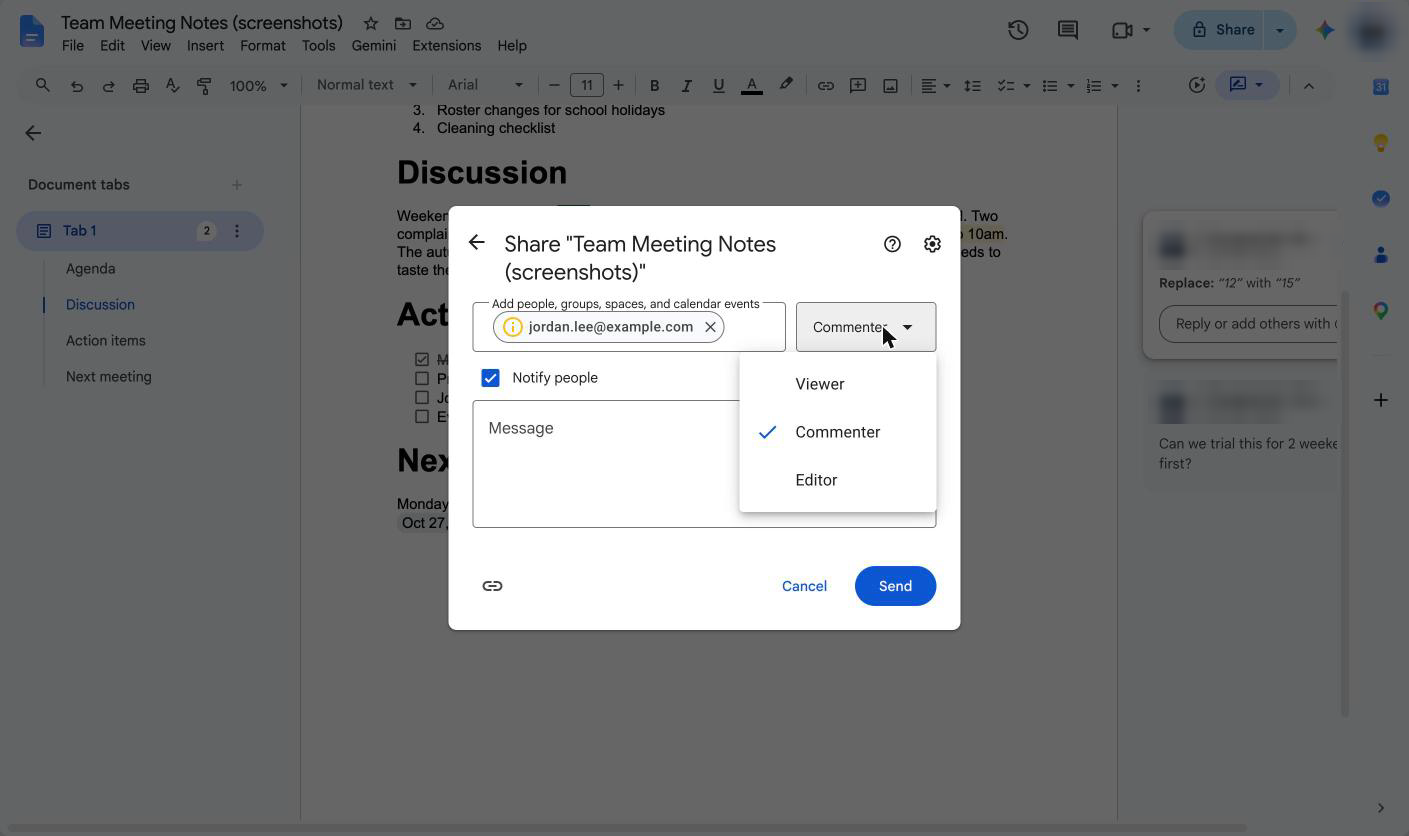
The three access levels
| Role | They can… | Use it for |
|---|---|---|
| Viewer | Read only | Sharing a finished handbook or notice |
| Commenter | Read, comment and suggest changes | Getting feedback on your resume from a teacher |
| Editor | Change anything, and share it with others | Working on a group project or shared roster |
Tip: give the lowest access people need. If someone only needs to give feedback, make them a Commenter.
Notify people
With Notify people ticked, Docs emails them a link. Add a short message: "Hi Ms Nguyen, could you check my resume before Friday? Thanks!"
General access: link sharing
At the bottom of the Share box, General access controls who can open the document with the link:
- Restricted — only people you've added. The safest option and the default.
- Anyone with the link — anyone who gets the link can open it. Only use this for things that are fine to be public.
Never use "Anyone with the link" for documents with personal details, like a resume with your phone number and address, or staff contact lists.
Changing or removing access
Open Share again, find the person, and change their role or choose Remove access.
Try it
Share your practice resume with a friend, family member or teacher as a Commenter, with a short message asking for one suggestion.